Anti-Fraud for WooCommerce Documentation
Set up fraud protection in layers, not by guesswork
Anti-Fraud for WooCommerce helps you identify suspicious orders, reduce card testing and automated checkout abuse, and decide what should happen when an order looks risky. This guide starts with the settings most stores should review first, then moves into card-testing controls, customer exceptions, imported orders, and optional advanced integrations.
The goal is not to make checkout as restrictive as possible.
Start with moderate protection, test the checkout paths your customers actually use, then tune individual rules from real order data. This reduces false positives and makes it much easier to identify which protection is helping and which setting needs adjustment.
1. Quick start: get protected without over-configuring
After installing and activating the extension, go to WooCommerce > Settings > Anti-Fraud. The current interface is organized around the jobs a store owner actually needs to perform rather than one long settings screen.
- Choose a starting protection preset. Low, Medium, and High configure a baseline of thresholds, rule weights, and attempt limits. This is the beginning of setup, not the end. Continue through the sections below before relying on automatic actions.
- Review Essential protection > Core protection. Confirm the medium/high risk thresholds and decide whether orders should be held or canceled automatically.
- Decide whether to run a pre-payment check. Use this when clearly high-risk checkouts should be stopped before the payment transaction proceeds.
- Configure card-testing protection if your store sees repeated payment attempts. Checkout CAPTCHA, order-attempt limits, payment-attempt limits, and progressive delays are the first tools to review.
- Place test orders. Test the checkout types and payment methods your customers actually use, including wallets, PayPal, pay-for-order links, Classic Checkout, or Checkout Blocks where applicable.
- Review the order result. Open the WooCommerce order and confirm the risk score, matched rules, skipped rules, and expected order status.
If you are experiencing a card attack right now
Do not begin by lowering every fraud threshold. First turn on a supported Checkout CAPTCHA, confirm the order and failed-payment attempt limits, and use Advanced counting if attackers are rotating IP addresses, emails, cards, or other checkout details. If PayPal is the attack path, review the PayPal-specific attempt limits as well.
Once the attack is controlled, review failed orders, email noise, and the rules that were actually triggered before tightening normal customer scoring.
Protection presets: choose a starting point, then finish your setup
Low, Medium, and High protection are starting configurations. Applying a preset sets a baseline for selected risk thresholds, fraud-rule weights, order-attempt limits, failed-payment limits, and related scoring values. It does not automatically configure every protection available in Anti-Fraud, and it cannot know what normal customer behavior looks like on your store.
A protection preset is not a plug-and-play setup.
Use the preset to establish a sensible baseline, then work through the setup areas below before relying on automatic blocking, holds, or cancellations. A clothing retailer, subscription store, high-ticket merchant, wholesale business, and digital-download store can have very different patterns of legitimate customer behavior.
| Preset |
Medium / High threshold |
Hold / Cancel score |
Order-attempt limit |
Failed-payment limit |
Counting mode |
| Low |
40 / 85 |
85 / 95 |
8 orders / 24 hours |
5 |
Orders only |
| Medium |
25 / 75 |
70 / 90 |
5 orders / 24 hours |
3 |
Orders only |
| High |
20 / 60 |
55 / 85 |
3 orders / 24 hours |
2 |
Advanced |
What these numbers mean: the Medium / High values are the configured risk-threshold points. Hold / Cancel are separate automatic-action scores. The preset also changes a number of individual fraud-rule weights, so two stores using the same threshold values can still score an order differently if their enabled rules or integrations differ.
After applying a preset, complete these setup areas
- Core protection: review your Medium/High thresholds, automatic hold/cancel scores, and whether you want the pre-payment fraud check enabled. The presets do not enable the pre-payment check for you.
- Fraud rules: review which signals make sense for your customers. International orders, billing/shipping differences, VPNs, high order values, and first-time buyers can all be legitimate depending on your business.
- Card testing protection: confirm the order-attempt and failed-payment limits are appropriate for your normal buying patterns. High protection switches order-attempt counting to Advanced; Low and Medium begin with Orders only.
- Checkout CAPTCHA: choose and configure Cloudflare Turnstile or Google reCAPTCHA v2 Checkbox if you want CAPTCHA protection. Presets cannot create or insert your CAPTCHA credentials.
- Trusted & blocked customers: add narrow exceptions for genuinely trusted customers and known problem details rather than weakening store-wide rules.
- PayPal protection: if you accept PayPal, review its dedicated attempt and verification controls. These are not fully configured by the general Low/Medium/High preset.
- Marketplace, API & imported orders: review these settings if orders arrive from an ERP, marketplace, subscription workflow, REST API, headless storefront, or other non-standard checkout route.
- Test before relying on automation: place representative test orders using your real payment methods and checkout paths, then review the score, matched rules, order status, and customer experience.
Why this matters
A strict preset can be appropriate during an active card-testing attack, but the same settings may be too restrictive for a wholesale buyer placing several orders, a traveler using a VPN, a customer sending a gift to a different address, or a high-value store where large orders are normal. Start with the preset, watch real orders, and tune the individual rule that is causing noise rather than changing everything at once.
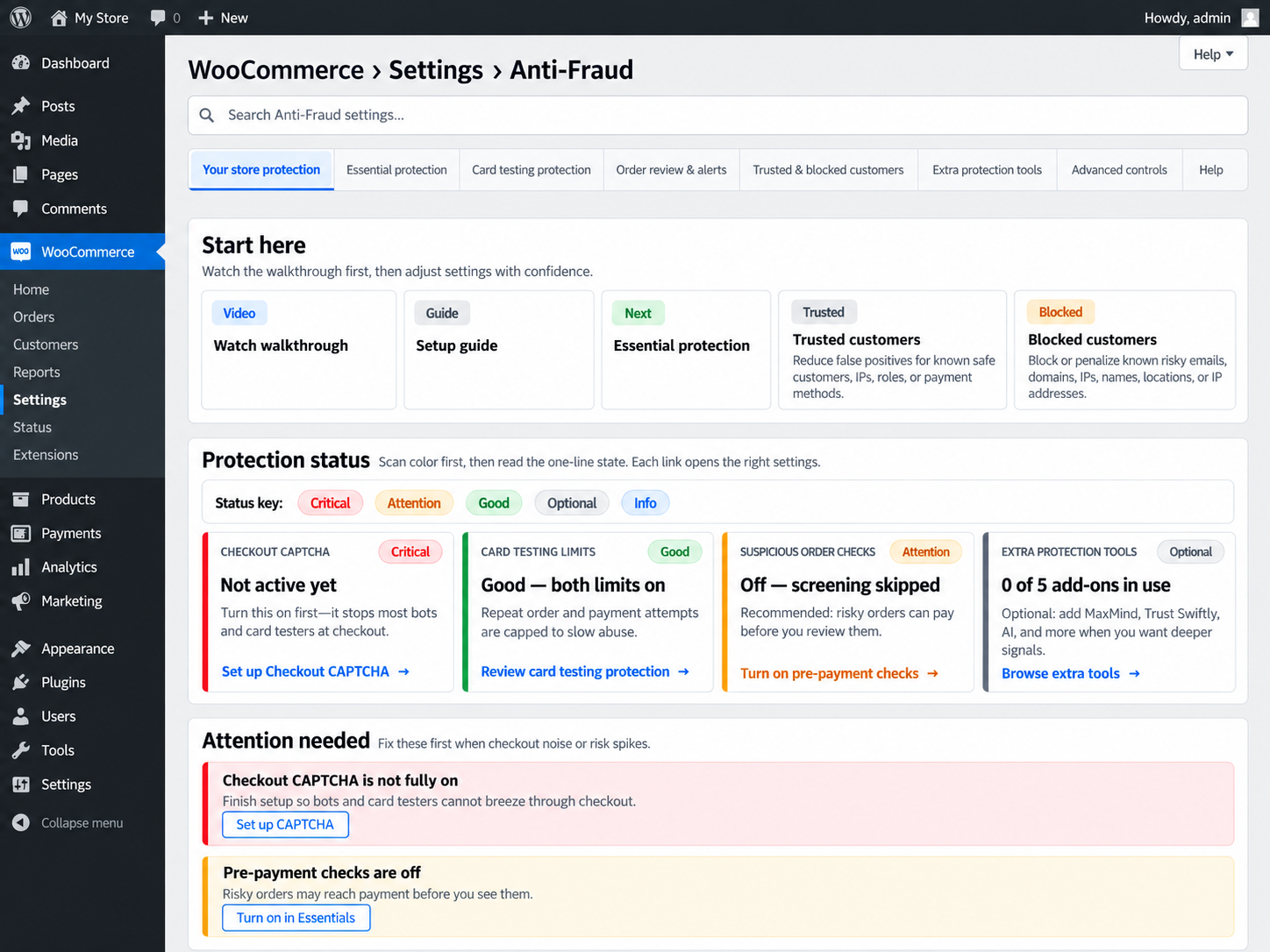
IMAGE 1 - Anti-Fraud Overview / Settings Navigation
Use the current Overview screenshot showing the settings search, merchant-focused navigation, Start here cards, and Protection status cards. The image already created in this project is appropriate here.
2. Know where each protection lives
The current settings are grouped by task:
Your store protectionOverview, protection status, setup shortcuts, and items that need attention.
Essential protectionCore thresholds, automatic actions, pre-payment checking, and the rules that build the risk score.
Card testing protectionOrder-attempt limits, failed-payment handling, progressive delays, and optional time-of-day caps.
Order review & alertsFailed-order cleanup, marketplace/import handling, and administrator alerts.
Trusted & blocked customersTargeted allow lists and block lists for known customers, locations, IPs, payment methods, and more.
Extra protection toolsCheckout CAPTCHA, PayPal controls, MaxMind services, and Trust Swiftly identity verification.
Advanced controlsOptional AI-assisted fraud signals and chargeback-related services.
HelpSupport links and troubleshooting information.
3. Core protection: risk scores, thresholds, and automatic actions
Anti-Fraud presents a 0-100 risk score. A lower displayed score indicates fewer or weaker risk signals. A higher score indicates that more or stronger enabled rules matched the order. The score is then compared with your Medium and High risk thresholds.
Thresholds label the order. Action thresholds decide what happens to it.
Keep these concepts separate when tuning the plugin. An order can be labeled High risk without automatically being canceled if your automatic action settings are more conservative.
Risk thresholds
- Medium risk threshold - base/default value 25 before a protection preset is applied.
- High risk threshold - base/default value 75 before a protection preset is applied.
- Applying Low, Medium, or High protection changes these threshold values to the baseline shown in the preset table above.
- Lowering a threshold flags more orders. Raising it reduces how many orders enter that risk level.
Automatic order status
- Adjust status from fraud score enables automatic hold/cancel actions.
- Put orders on hold at score has a base/default value of 70. Protection presets can change it. Set 0 to disable automatic holds.
- Cancel orders at score has a base/default value of 90. Protection presets can change it. Set 0 to disable automatic cancellation.
- Allow custom status after review lets stores use a custom order status in the review workflow.
Pre-payment fraud check
Enable Run check before payment when you want Anti-Fraud to evaluate supported checkouts before the payment transaction is completed. If the calculated risk reaches the configured high-risk level, checkout can be stopped and the customer shown your custom message. This setting is not enabled by the Low, Medium, or High protection presets, so review it separately.
Retailer pain point: false declines are expensive too.
Avoid wording that accuses a shopper of fraud. A neutral message such as "This order cannot be completed for security reasons. Please contact the store if you believe this is a mistake." gives a legitimate customer a clear next step without exposing your fraud rules.
Order origin
Block unknown origin is an advanced protection. It blocks checkout/API requests that cannot prove a trusted storefront or recognized created_via source.
Important edge case: WooCommerce "Origin: Unknown" is not the same thing.
Missing UTM or Order Attribution data alone does not mean Anti-Fraud should block a normal storefront checkout. Test imported orders, pay-for-order links, Store API/Blocks, and any custom integration before enabling this option broadly.
IMAGE 2 - Core Protection
Use a current screenshot of Essential protection > Core protection showing Risk thresholds, Pre-payment fraud check, and Automatic order status. Do not expose API keys or customer data.
4. Fraud rules: score the signals that matter to your store
Go to Essential protection > Fraud rules. Each enabled rule has a weight that controls how much influence the rule has on the displayed risk score.
Customer historyFirst-time buyers and optional first-processing-order checks.
Address & locationBilling/shipping mismatch, phone-country consistency, IP/geolocation, proxy/VPN signals, and international or selected higher-risk countries.
Email signalsSuspicious/disposable email characteristics and optional external email verification.
Order valueOrders over a fixed amount or unusually large compared with normal order values.
Repeated activityMultiple orders from the same IP and repeated order attempts.
External intelligenceOptional MaxMind and other connected signals can contribute when enabled.
Tune the rule, not the whole store.
A gift order may legitimately have different billing and shipping addresses. A business buyer may place several orders in one day. A traveler may appear behind a VPN. When a legitimate order scores too high, inspect the matched rules first and adjust the specific rule or use a narrow allow-list exception instead of weakening every threshold.
5. Card testing protection: stop repeated checkout abuse
Card testing occurs when automated traffic repeatedly attempts checkout to test stolen payment credentials. The damage often includes hundreds of failed payments, fake orders, processor warnings, email floods, and legitimate shoppers being caught in emergency restrictions.
Order attempt limits
- Limit orders per buyer caps orders within a rolling window.
- Rolling window defaults to 24 hours.
- Max orders per buyer defaults to 5 before preset changes.
- Orders only counts WooCommerce orders using IP, email, and phone signals.
- Advanced adds payment-attempt information and can use cart fingerprint/session context when attackers rotate customer details.
Advanced counting
Use Advanced counting when normal buyer identifiers are changing between attempts. It can combine recent orders and failed payments with cart/session context. Broader signals such as email domain, country, or amount band are used in attack mode rather than acting as a simple store-wide lockout.
- Max failed payments with the same cart defaults to 5. It is designed to identify rotating customer details tied to the same products, total, shipping, and gateway.
- Store-wide failed payment burst defaults to 25. It is an emergency signal and does not block checkout by itself; it must be combined with the same cart fingerprint or session context.
Failed payment handling
- Progressive checkout delay adds a longer wait after repeated failures, for example 10 seconds, then 20, then 30.
- Cap failed payments per order defaults on.
- Max failed payments per order defaults to 3 and also aggregates recent failed orders using buyer signals for gateways that create a new order on each attempt.
Time-of-day order cap
This optional control limits total checkout volume during selected hours using the WordPress timezone. It is intended for unusually aggressive traffic. Do not enable a low global cap on a busy store without testing expected peak order volume.
IMAGE 3 - Card Testing Protection
Show Card testing protection with Order attempt limits, the Orders only / Advanced selector, failed-payment handling, and progressive checkout delay. A wide desktop crop is best.
Common support scenario: a real customer sees "too many attempts".
First identify which limiter fired: order-attempt limit, failed-payment cap, PayPal-specific limit, or site-wide rate limit. Note the exact error, payment method, customer email/IP if appropriate, and time of the event. Do not simply raise every limit at once. For genuinely high-frequency trusted buyers, a narrow allow-list entry may be safer than weakening attack protection for everyone.
6. Checkout CAPTCHA: add human verification without duplicating challenges
Go to Extra protection tools > Checkout CAPTCHA. Anti-Fraud supports:
- Cloudflare Turnstile
- Google reCAPTCHA v2 Checkbox
Google reCAPTCHA v3 is not supported. If you want a lower-friction alternative to a visible challenge, use Cloudflare Turnstile.
For Classic Checkout, you can choose the CAPTCHA position. Checkout Blocks uses the equivalent block area so the challenge remains clear of payment fields and the Place Order button. If a theme or gateway overlaps the widget, try positioning it after payment methods and above Place Order.
Common support scenario: two Turnstile integrations are protecting checkout.
Multiple Turnstile widgets can create duplicate challenges or failed verification. If another plugin already protects WooCommerce checkout with Turnstile, disable checkout protection in one of the two plugins. Anti-Fraud can detect known conflicts and display a warning.
Advanced site-wide checkout rate limit
Checkout CAPTCHA also includes an optional store-wide rate limit for burst attacks where bots rotate IP addresses. It is off by default. The current defaults are a 60-second window and 100 checkouts per window.
Use this cautiously. A store-wide cap can affect legitimate traffic during a sale, product launch, flash promotion, or other real spike.
IMAGE 4 - Checkout CAPTCHA
Use a current screenshot with Cloudflare Turnstile selected, provider key fields visible but blank/obscured, CAPTCHA position, and the Advanced site-wide checkout limits section.
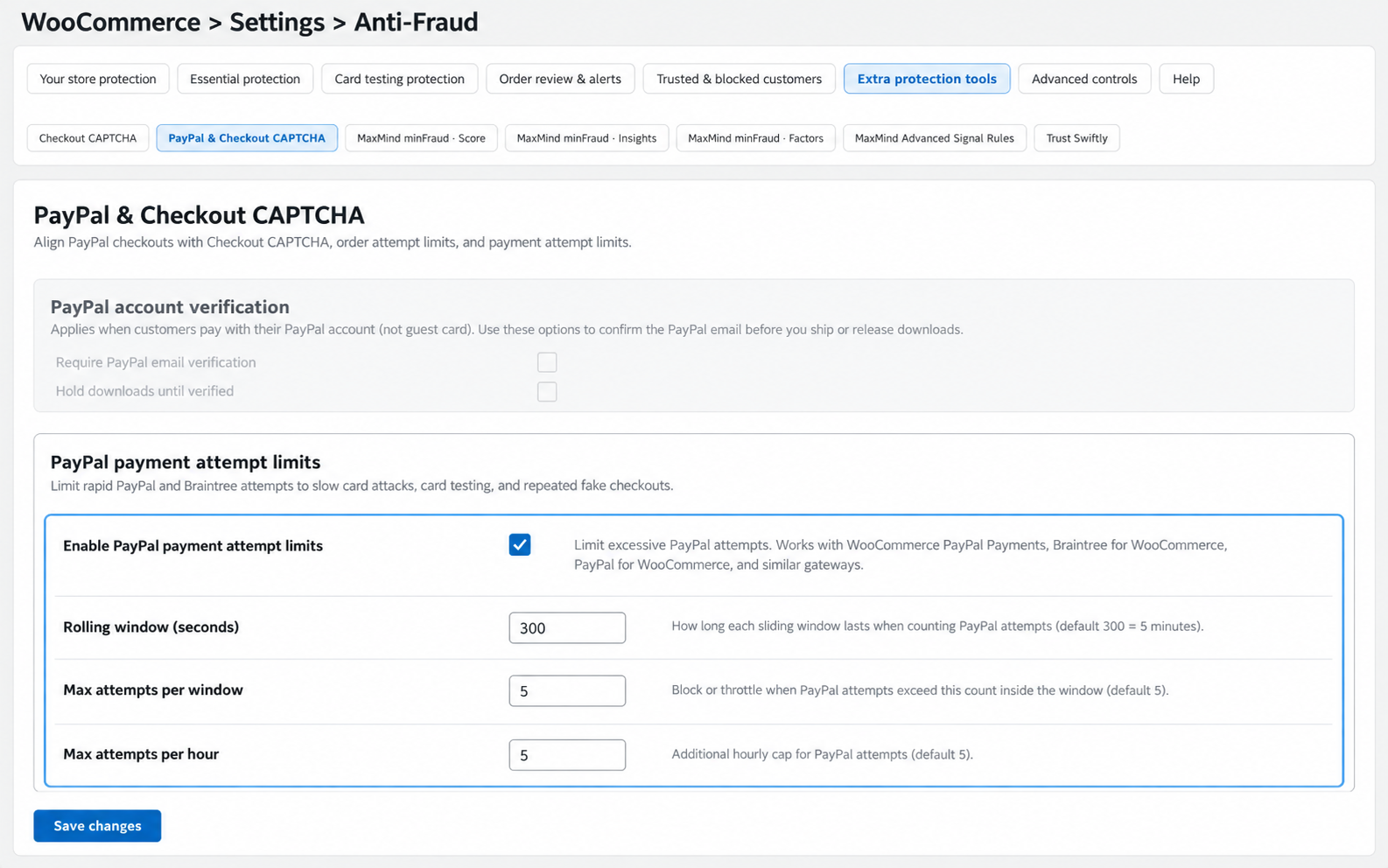
7. PayPal protection: separate payment-attempt limits from account verification
When a supported PayPal-related gateway is detected, Anti-Fraud provides extra controls under Extra protection tools > PayPal & Checkout CAPTCHA.
PayPal payment attempt limits
These controls are designed for rapid PayPal/Braintree checkout attempts. The current logic counts genuine customer payment attempts rather than every CAPTCHA, PayPal SDK setup, or 3-D Secure request within the same checkout.
- Rolling window - current default 300 seconds (5 minutes).
- Max attempts per window - current default 5.
- Max attempts per hour - current default 5.
Edge case: if you enable PayPal attempt limits, save explicit numeric values.
Do not leave the rolling-window or maximum-attempt fields blank while the limiter is enabled. A blank saved value can behave like zero in numeric checks and make a legitimate first checkout look over the limit.
PayPal account verification
This is a different workflow. It can require verification of the PayPal email address, hold downloadable products until verification succeeds, send reminder emails, cancel orders that remain unverified, and maintain trusted PayPal email addresses.
Gateway connection problems are not always Anti-Fraud problems.
If the PayPal payment extension itself reports a disconnected or incorrect webhook, points to an old staging URL, or cannot complete its own connection test, correct that in the payment extension first. Anti-Fraud can limit and assess checkout attempts, but it does not repair a gateway's webhook subscription.
8. Review orders, use the dashboard, and clean up after an attack
Review fraud information on an order
Open WooCommerce > Orders and select an order. The Anti-Fraud assessment can show the displayed risk score and risk level, rules that contributed to the score, skipped rules, information returned by enabled integrations, and available controls for blocking suspicious details.
If an order does not yet have a score, use the available Calculate fraud risk or Fraud Check action and then review the queue if processing does not complete.
IMAGE 5 - Order Risk Details
Use a current order screenshot that shows the Anti-Fraud risk score, risk level, and the rules/reasons that contributed to the assessment. Use test data only.
Anti-Fraud dashboard
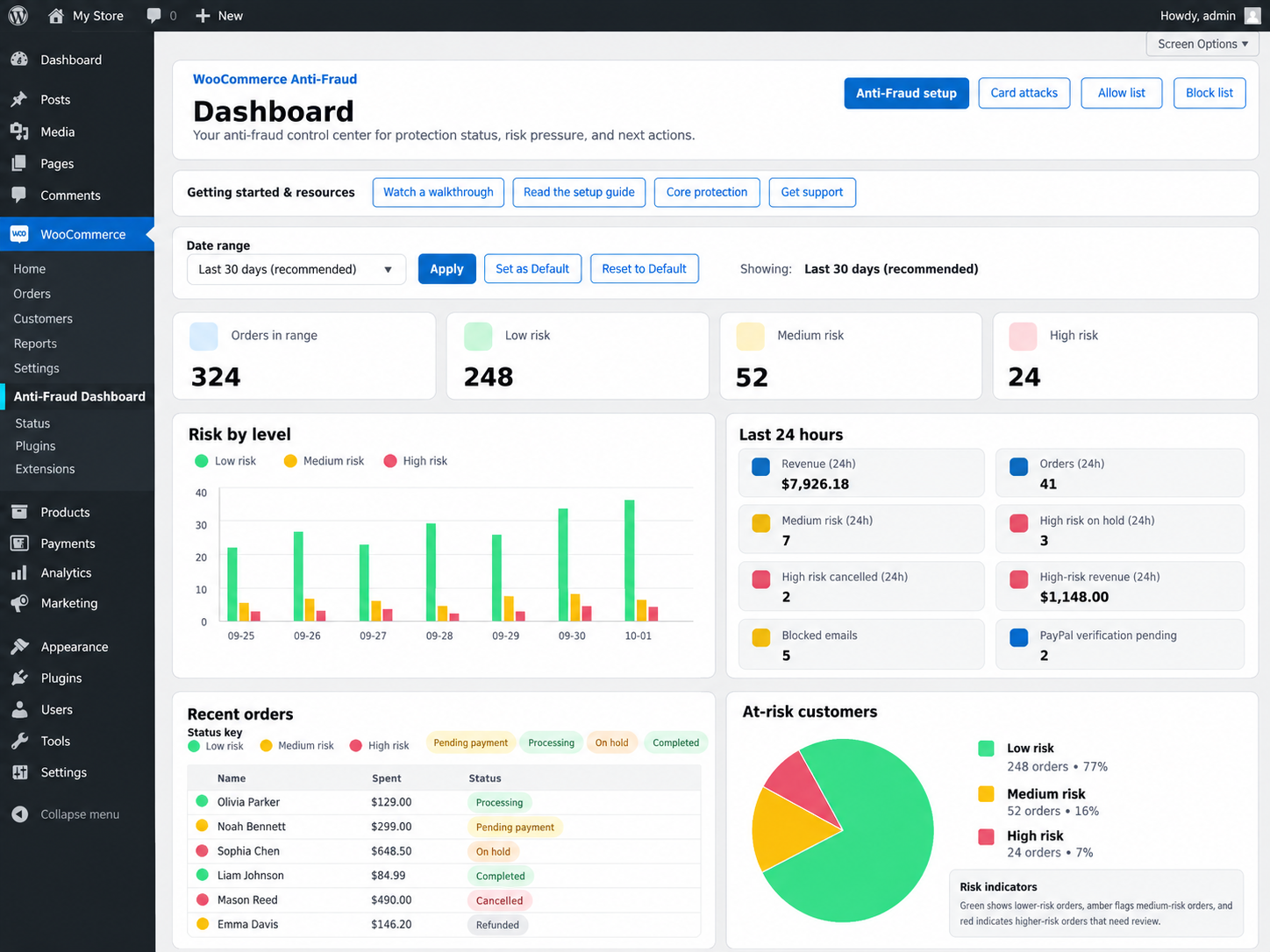
The dashboard gives a fast view of recent risk activity. The default reporting period is Last 30 days. Available ranges include 15, 30, 60, 90 days, a custom range, and all orders.
The dashboard includes orders in range, low/medium/high-risk totals, recent risk trends, 24-hour activity, high-risk revenue exposure, blocked email activity, PayPal verification activity, recent orders, and queue-health information when applicable.
Large stores:
Use a shorter date range first if the store has a large order history. The plugin specifically warns large catalogs to avoid unnecessarily expensive full-history dashboard queries.
IMAGE 6 - Anti-Fraud Dashboard
Use the current 30-day dashboard image created in this project. Include low/medium/high-risk totals, Risk by level, Last 24 hours, Recent orders, and risk indicators.
Failed orders & cleanup
During a card attack, failed orders and payment-failure emails can overwhelm an admin team. Go to Order review & alerts > Failed orders & cleanup.
- Choose a cleanup window from the recent failed-order timeframes.
- Bulk-delete failed WooCommerce orders after reviewing the affected period.
- Temporarily stop failed-payment emails if an attack is flooding the inbox, then turn normal notifications back on when the incident is over.
Deleting a WooCommerce order does not delete data already sent to an external gateway, ERP, fulfillment system, accounting platform, or other integration.
9. Trusted and blocked customers: reduce false positives without weakening protection
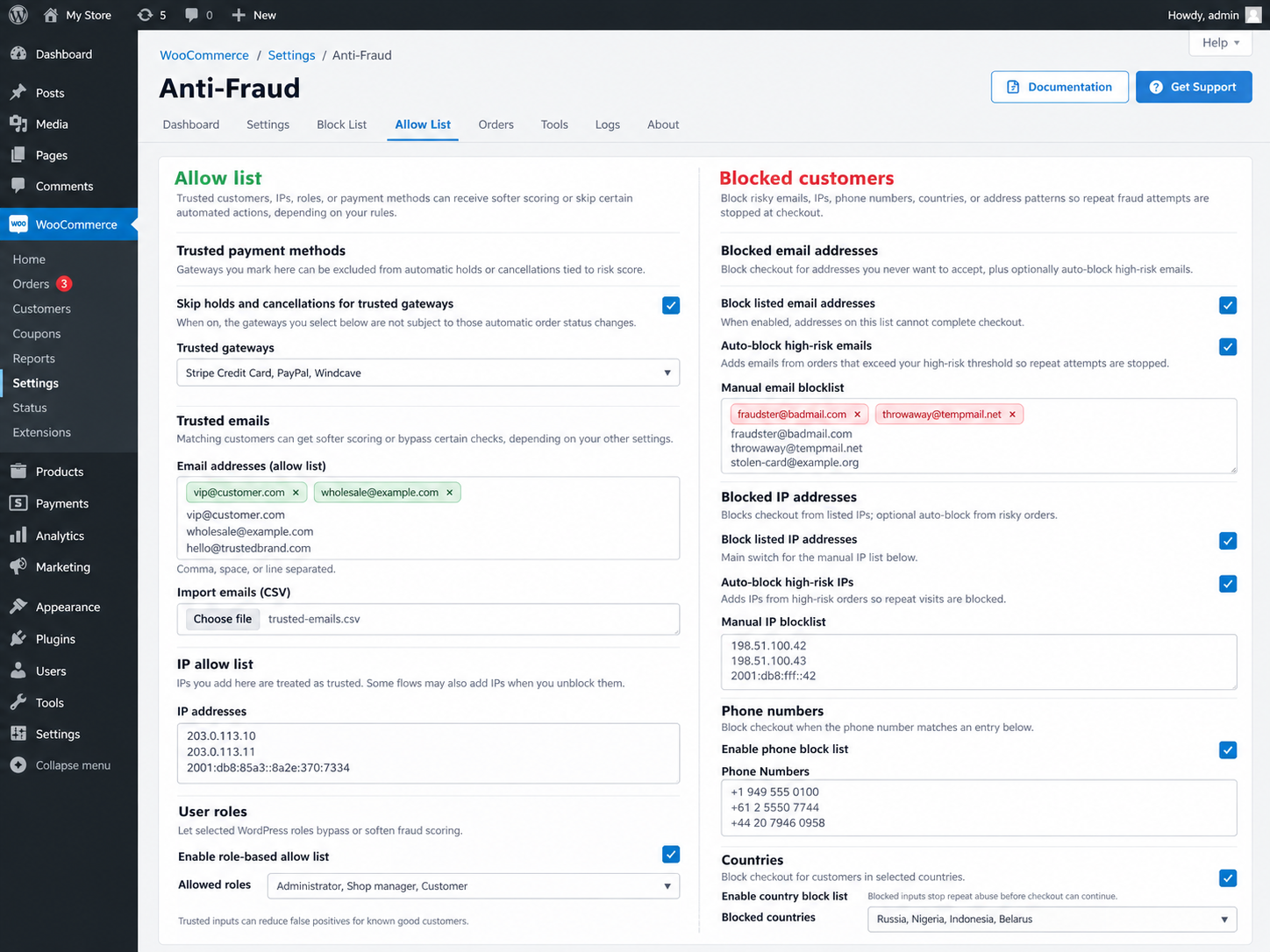
Allow list
Use for genuinely trusted emails, IP addresses, phone numbers, user roles, payment methods, names, address/location data, and selected REST API keys. Trusted payment methods can also be excluded from automatic holds/cancellations when configured.
Block list
Use for known risky email addresses, IPs, phone numbers, countries, names, address keywords, cities, states/regions, and postal codes. High-risk email addresses and IPs can also be added automatically when enabled.
Keep exceptions narrow.
A broad allow-list rule can bypass useful fraud protection for more customers than intended. If one customer repeatedly trips one rule, first understand why, then allow only the identifier you genuinely trust.
IMAGE 7 - Allow List + Block List (50/50)
Use the 50/50 Allow List / Blocked Customers image created in this project. Use test email addresses, IPs, and phone numbers only.
10. Marketplace, imported, and REST API orders
Orders created outside the normal storefront often contain different customer and checkout data. If you use marketplaces, an ERP, headless checkout, an order importer, or a custom connector, configure these flows deliberately instead of treating them exactly like a normal browser checkout.
Marketplace orders
Under Order review & alerts > Marketplace orders, Anti-Fraud can recognize supported marketplace sources including eBay, Amazon, and Etsy and apply marketplace-aware handling.
For unknown REST imports, choose how they should be handled: hold for review, apply standard rules, or use the store's selected restrictive handling. Test a real imported order before turning on aggressive restrictions.
REST API orders
- Score REST API orders is enabled by default.
- Throttle API order volume is optional and off by default.
- Max REST API orders per hour uses 0 to mean none are accepted when throttling is active. Do not enable throttling with 0 if a legitimate integration creates orders.
- Trust specific REST API keys can be used for known integrations that should bypass throttling rules.
Edge case: imported orders look suspicious because data is missing.
A marketplace or ERP order may legitimately lack browser IP, session, billing/shipping patterns, or other storefront data. If imported orders suddenly go on hold, review the Marketplace orders, REST API, and Block unknown origin settings before changing normal shopper thresholds.
IMAGE 8 - Marketplace / Imported Order Handling
Show Order review & alerts > Marketplace orders with supported marketplace handling and the unknown REST import behavior options. No live marketplace credentials are needed.
11. Alerts, fraud-check processing, and historical backfill
Administrator alerts
Go to Order review & alerts > Email alerts to notify administrators when an order reaches a selected risk score. You can configure additional recipients and rate-limit alert volume so a card attack does not flood the inbox.
Fraud-check queue health
Some checks are processed through WordPress scheduled tasks. The dashboard can report pending scheduled checks, waiting/orphaned work, stale records, and checks that are currently running.
- Review the dashboard queue status.
- Confirm WordPress scheduled events are running.
- Use any available recovery/repair action.
- Check WooCommerce and Anti-Fraud logs if orders remain unscored.
A queue warning does not automatically mean fraud protection has stopped.
Compare recent scored orders, pending checks, and actual cron activity. If the dashboard shows a stale pending total or a message such as Last processed: Never while recent orders are still receiving scores, investigate the real queue state and scheduled tasks before changing fraud rules.
Backfill past orders
Under Essential protection > Core protection > Backfill scores for past orders, you can enable historical scoring and choose the number of days to review. The default history setting is 7 days. Backfill applies to existing/historical orders only; it does not turn normal real-time fraud checking for new orders on or off.
12. Advanced and optional protection tools
Anti-Fraud's built-in rules work without third-party services. Add external services only when they solve a specific risk problem for your store. Third-party accounts, API usage, data handling, availability, and charges are separate from your Anti-Fraud subscription.
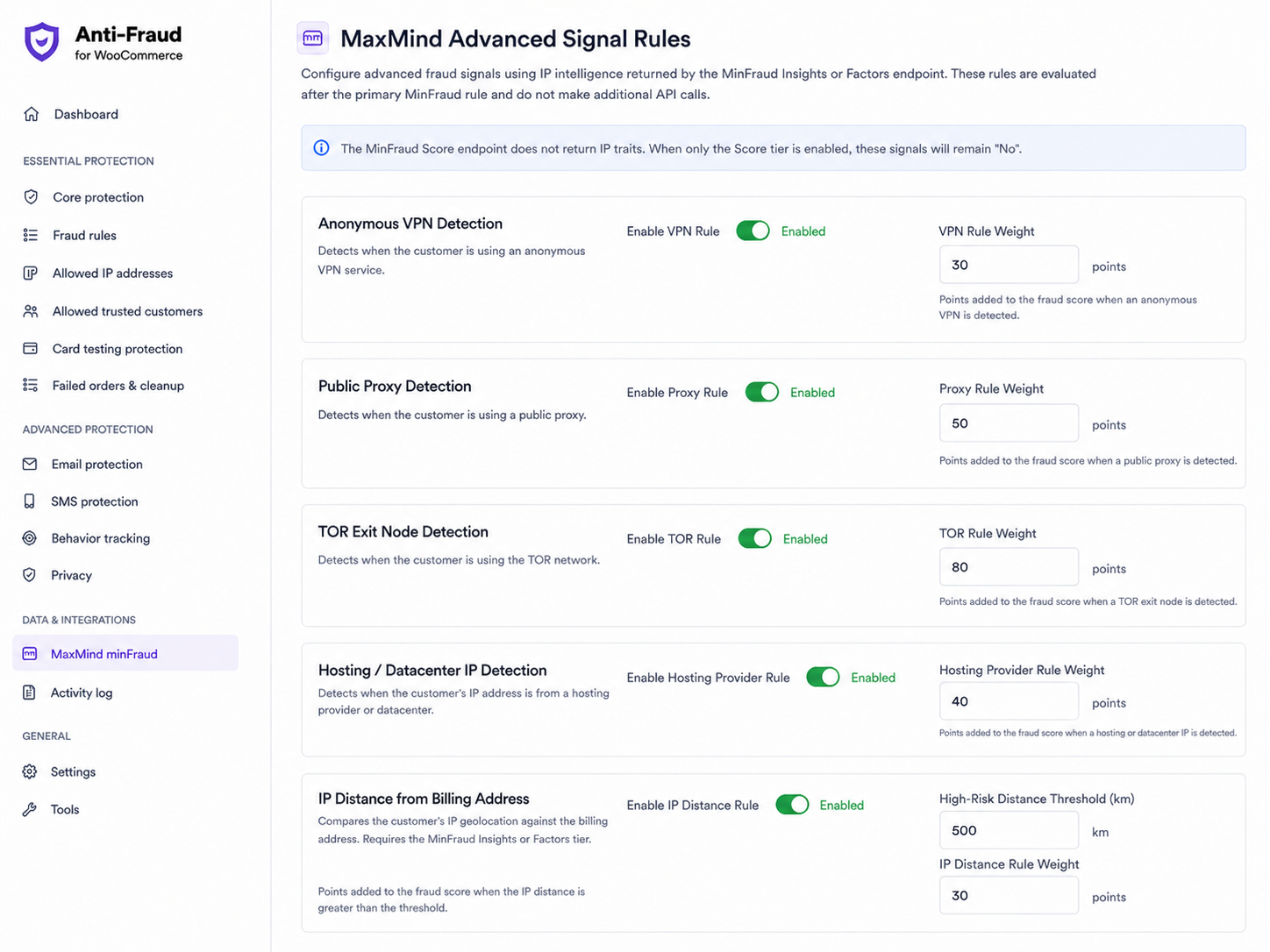
MaxMind minFraud
MaxMind is an external fraud-intelligence service, not the core scoring engine. Anti-Fraud can connect to:
- MaxMind Score - transaction risk scoring.
- MaxMind Insights - additional fraud intelligence.
- MaxMind Factors - more detailed risk-factor data.
- Advanced Signals - VPN, public proxy, Tor exit node, hosting/datacenter IP, and IP-to-billing-distance checks. These require a MaxMind Insights or Factors tier because the Score tier does not return the required IP-trait data.
Only enable the API level and signals supported by your MaxMind plan. Configure the MaxMind threshold and how much influence its result should have on the Anti-Fraud score.
Trust Swiftly identity verification
Trust Swiftly can request an additional verification step for selected higher-risk customers. Connect the service, choose the verification template, set when verification occurs, and choose the risk score that triggers verification. This can be useful when you want to step up verification instead of immediately rejecting every questionable order.
AI-assisted fraud signals
Under Advanced controls > AI fraud signals, the plugin can optionally send relevant order context to a supported AI service and display additional analysis for administrators. Treat AI output as another review signal, not the sole reason to accept or reject an order.
SMS verification
FraudLabs Pro can send a one-time verification code to a customer's phone. This option currently applies to Classic Checkout. Do not rely on it as the verification layer for Checkout Blocks unless the settings indicate support is available.
Chargeback programs
Chargeback-related onboarding links are separate services. Anti-Fraud helps identify and act on suspicious orders; it does not replace payment-gateway dispute handling or manage a chargeback case for you.
IMAGE 9 - Extra Protection Tools
Use a clean current screenshot or composite showing Checkout CAPTCHA, MaxMind, and Trust Swiftly navigation/settings. Never show real secret keys or API credentials.
13. Troubleshooting and real-world edge cases
When something looks wrong, first identify whether the problem is fraud scoring, checkout blocking, a payment gateway, an external integration, or scheduled processing. Changing unrelated fraud rules can hide the real cause.
| Symptom |
Check first |
Avoid |
| Legitimate customer blocked for too many attempts | Identify whether order, failed-payment, PayPal, or global limiter fired. | Raising every threshold at once. |
| CAPTCHA appears twice or fails validation | Look for another checkout CAPTCHA/Turnstile plugin or theme integration. | Running two Turnstile widgets on the same checkout. |
| PayPal says too many attempts on a first checkout | Confirm current plugin code, explicit PayPal limit values, and whether the request is a genuine payment attempt. | Leaving enabled PayPal limit fields blank. |
| Wallet checkout behaves differently | Test WooPayments Apple Pay/Google Pay or other tokenized wallet path separately. | Assuming a standard card checkout test covers every wallet flow. |
| Imported orders are held or blocked | Marketplace profile, REST API handling, trusted keys, and Block unknown origin. | Applying storefront assumptions to ERP/API orders with missing browser data. |
| Orders remain unscored / queue warning | Dashboard queue status, WordPress cron, repair action, logs. | Changing risk weights before confirming checks are actually running. |
| Gateway says high risk or declines while Anti-Fraud looks normal | Gateway decision/log plus Anti-Fraud order assessment. | Assuming Anti-Fraud overrides Square, PayPal, WooPayments, Stripe, or another gateway's own decisioning. |
| Repeated order-status changes or large email/note volume | Confirm the latest plugin release, automatic status settings, and logs for status-hook loops. | Leaving aggressive automatic status changes running while diagnosing a loop. |
A legitimate order receives a high score
Open the order and review the matched rules. Identify the rule or combination causing the score, then tune that rule or use a narrow allow-list exception. Common false-positive patterns include gifts with different shipping addresses, business buyers with repeated orders, travelers/VPNs, and unusual but legitimate high-value orders.
A fraudulent order receives a low score
Check whether the relevant rules are enabled and weighted strongly enough for the store's actual fraud pattern. Consider card-testing controls, Checkout CAPTCHA, a targeted block list, MaxMind, or another appropriate signal. No fraud system can identify every fraudulent transaction.
Administrator emails do not arrive
Confirm the alert recipient and trigger score, then check the site's normal WordPress email delivery and spam filtering. Anti-Fraud uses the WordPress mail system, so a site-wide email-delivery issue can affect fraud alerts too.
A gateway-specific issue looks like an Anti-Fraud issue
Separate the payment provider's decision from Anti-Fraud's decision. Capture the order ID, exact payment method, gateway response/log, Anti-Fraud risk result, and the time of the event. This is especially important with gateways that have their own fraud rules, risk decisions, 3-D Secure flows, webhooks, or express-payment overlays.
14. Testing checklist before you rely on automatic blocking
Normal checkoutPlace a standard low-risk order and confirm the expected score/status.
Every key payment methodTest card gateway, PayPal/Braintree, and any alternate gateway you depend on.
Wallets / express checkoutTest Apple Pay, Google Pay, PayPal express, or similar tokenized flows if enabled.
Checkout typeTest Classic Checkout and Checkout Blocks/Store API where the store uses them.
Order Pay linksTest pay-for-order flows when customers can retry or complete payment later.
Imports and APIsTest marketplace, ERP, headless, or REST-created orders before strict source controls.
15. Best practices for ecommerce retailers
- Use several moderate protections instead of one extremely strict rule.
- Use Checkout CAPTCHA and attempt limits for automated card testing.
- Use pre-payment protection when high-risk transactions must be stopped before reaching payment.
- Review high-risk and high-value orders before fulfillment.
- Use allow lists only for genuinely trusted customers or integrations.
- Rate-limit administrator alerts during attack conditions so important emails remain visible.
- Enable third-party services only when they add a signal your store actually needs.
- Keep WooCommerce, Anti-Fraud, payment extensions, and WordPress current.
- After changing fraud settings, test every important checkout path before assuming the configuration is complete.
16. What to send OPMC Support
If you need help with a reproducible Anti-Fraud issue, the following information usually shortens the investigation:
- A concise description of expected vs. actual behavior.
- Example WooCommerce order ID(s).
- Approximate time of the event and store timezone.
- The exact customer-facing error message, if any.
- Payment method and checkout type involved.
- Relevant Anti-Fraud / WooCommerce logs.
- WooCommerce System Status.
- Any Anti-Fraud queue-health warning shown on the dashboard.
Protect customer and store secrets when requesting support
Do not send passwords, complete payment-card details, CAPTCHA secret keys, MaxMind/OpenAI/Trust Swiftly/FraudLabs credentials, or other private API secrets in a support ticket. OPMC Support can ask for the specific diagnostic information needed without requiring those credentials.
Anti-Fraud is designed to complement your payment gateway's fraud controls, not replace them. No automated fraud system can guarantee that every fraudulent transaction will be detected or that every legitimate transaction will be accepted.









Reviews
There are no reviews yet.